Recrur’s Automatic DPA Renewal Emails feature allows you to automatically send candidates reminders to renew their consent for personal data processing.
This functionality helps you keep candidate consents up to date, reduces manual work, and makes it easier to manage consent renewals in accordance with your organization’s data retention policies.
1. Where to Find the Automatic DPA Renewal Email Settings
To access the settings:
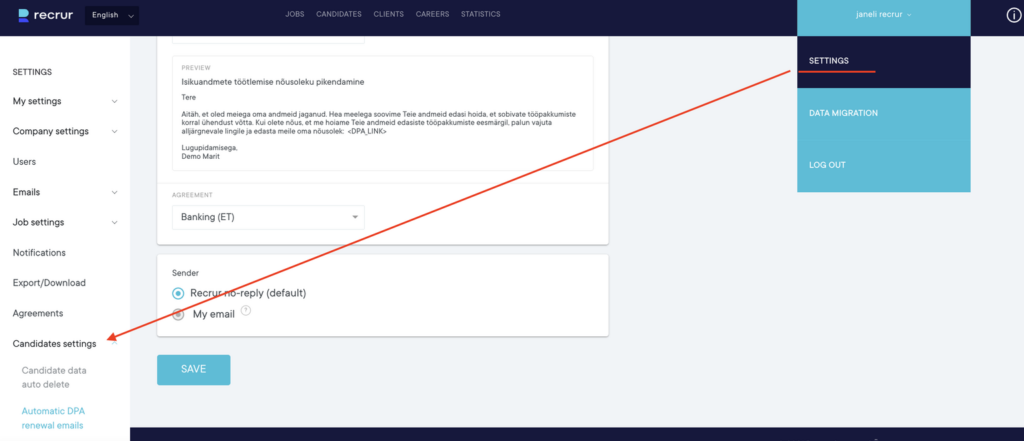
- Click on your name in Recrur and select Settings.
- From the left-hand menu, select Candidate Settings.
- Click on Automatic DPA Renewal Emails.
This will open the automation settings page, where you can configure the sending schedule, select which candidates should receive emails, choose the email content, and specify the sender.
2. Configure the Sending Schedule and Select Candidates
In the first section, you have to activate the functionality!

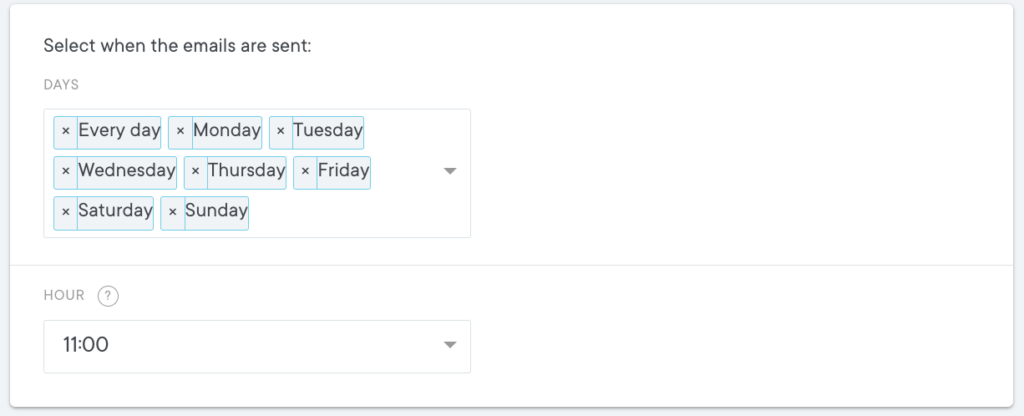
When Should Emails Be Sent?
You can choose the frequency and time of the automatic emails.
The available options are:
- Selected days – The system checks for candidates who meet the selected criteria every day and sends emails at the specified time. Day selection is customizable.
- Selected time – The system sends emails at your preferred time.
Which Candidates Should Receive Emails?
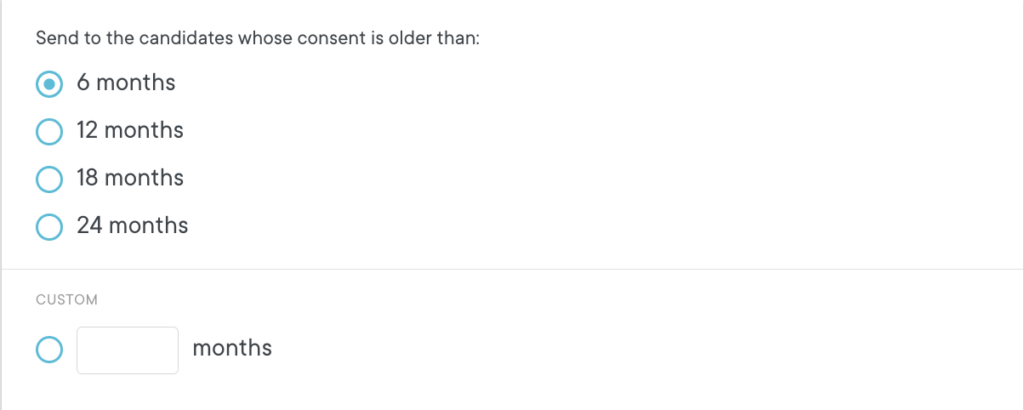
Next, you can specify how old a candidate’s currently valid consent must be before they receive an automatic renewal email.
Important: The timing of consent renewal requests should be based on your organization’s data retention policies and applicable data protection requirements.
For example, if your organization retains candidate data based on consent for two years, you may want to send a renewal request before the end of that period.
This gives candidates enough time to decide whether they wish to renew their consent.
Configure Exclusions
You can also define exclusions to prevent automatic renewal emails from being sent to certain candidates.
The available exclusions include:
- Candidates without valid consent: Renewal emails will not be sent to candidates who have not provided the required initial consent. If a candidate has never given consent, there is no existing consent to renew.
- Talent Pool Consents: You can exclude consents provided through the Talent Pool.
- Job Portal Consents: You can exclude consents that were obtained through external job portals.
These options help you ensure that renewal requests are sent only to the relevant candidates.

Set Up Follow-Up Reminders
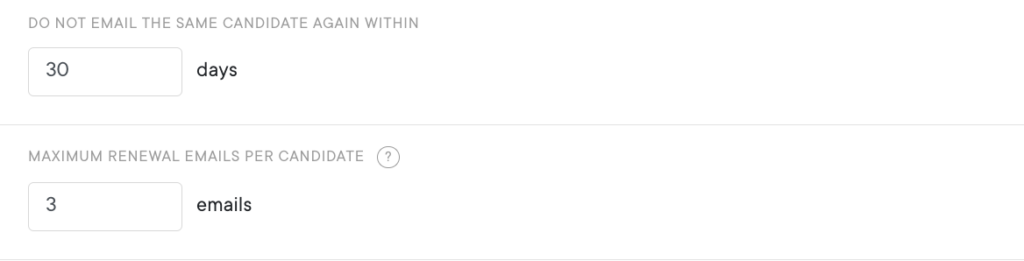
You can also specify how many renewal emails a candidate may receive and over what period.
This is useful when a candidate does not respond to the initial consent renewal request.
Example
Let’s say you configure the automation as follows:
- Emails are sent every Monday at 10:00 AM.
- A candidate can receive a maximum of three emails.
- The reminder period is set to 30 days.
If a candidate receives their first renewal email on Monday but does not respond, the system will send another email at the next scheduled sending time.
If the candidate still does not respond, a third reminder can be sent, provided it falls within the configured reminder period.
Once the candidate renews their consent, no further reminders for that renewal are needed.
This allows you to give candidates multiple opportunities to renew their consent while avoiding excessive email communication.
3. Select the Email Template and Consent Form
In the Email section, you can choose which email template and consent form the automation should use.
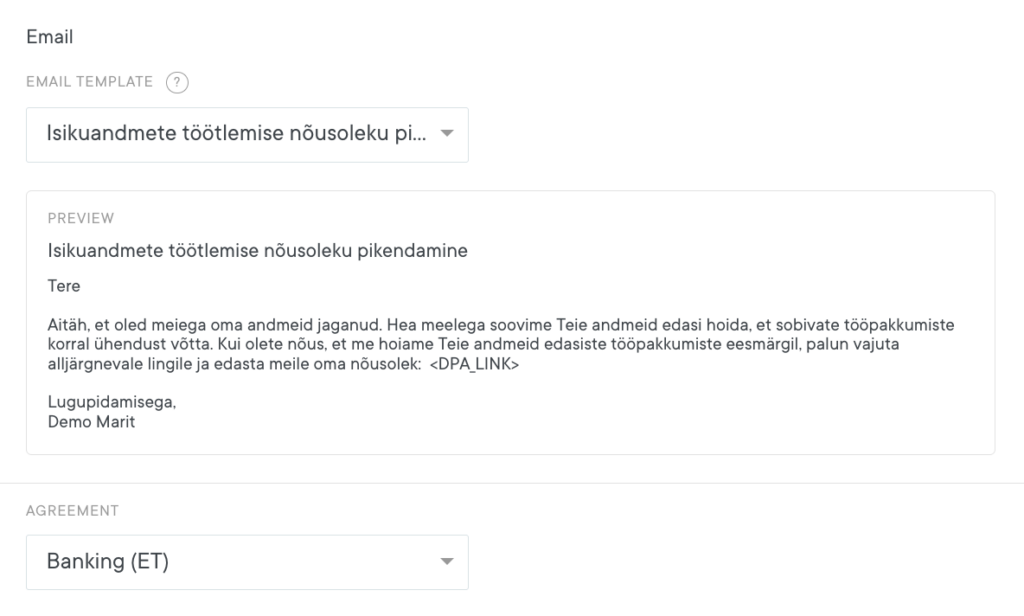
Select an Email Template
From the email template dropdown menu, you can select an existing template that will be used for automatic consent renewal emails.
If you want to edit the email content or create a new template:
- Go to Settings.
- Select Emails from the left-hand menu.
- Create a new email template or edit an existing one.
Read the manual about editing email templates HERE.
Once your template is ready, you can select it from the dropdown menu in the automatic consent renewal email settings.
Select a Consent Form
From the consent dropdown menu, you can choose which consent form candidates will receive for renewal.
The selected consent form will be included in the renewal process, allowing candidates to review it and provide their consent.
If you need to edit an existing consent form or create a new one:
- Go to Settings.
- Select Consents from the left-hand menu.
- Edit an existing consent form or create a new one.
Read the manual about editing email templates HERE.
Tip: Before enabling the automation, make sure that both your email template and consent form are up to date and aligned with your organization’s data processing policies.
4. Choose the Email Sender
In the final section, you can choose which sender name and email address will be used for automatic consent renewal emails.
There are two available options.
Option 1: Send Emails From Your Connected Email Account
If you have integrated your email account with Recrur, you can send automatic consent renewal emails using your connected email address and sender name.
This allows candidates to receive emails from a familiar sender, making the communication more personal and recognizable.
Option 2: Send Emails From a No-Reply Address
If your email account is not connected to Recrur, automatic emails will be sent from a no-reply address.
In this case, you cannot select your personal or company email address as the sender.
How to Connect Your Email Account to Recrur
If you want automatic emails to be sent from your own email address:
- Go to Settings.
- Select Emails and Integrations from the left-hand menu.
- Connect your preferred email account to Recrur.
Read the manual about email integration HERE.
Once your email account has been successfully connected, you can select it as the sender in the automatic consent renewal email settings.